

Latest Update Available
GEN2
as of March 16 2026
Note: The (GEN2) firmware version is ONLY compatible with (GEN2) QuickTone™ Editor Software.
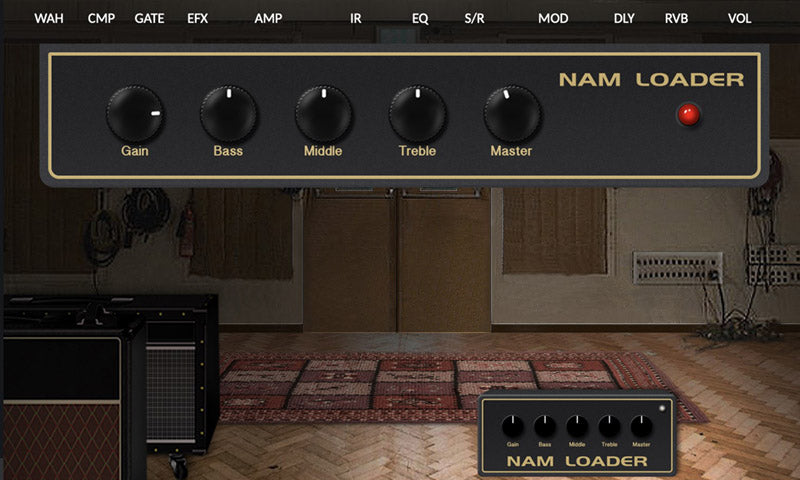
MG-30 now has NAM loader capabilities
Get 10 NAM slots to load into and play with in the AMP block.
MG-30 Gen2 Firmware Update
New Effects Included with the Gen2 Update
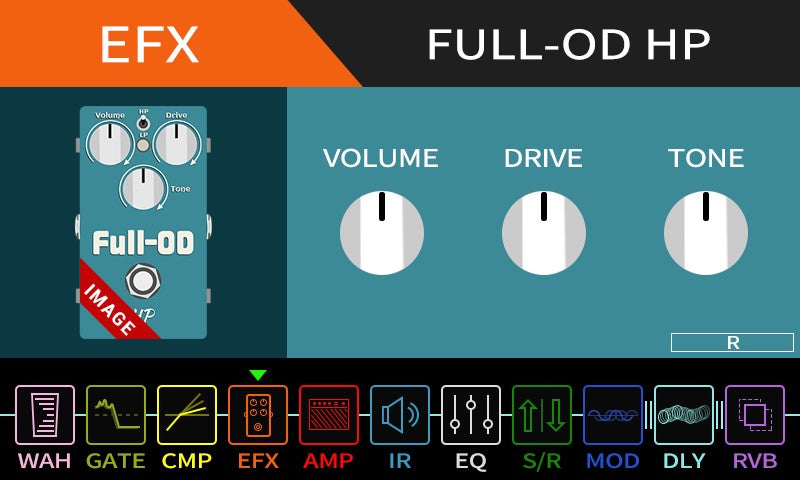
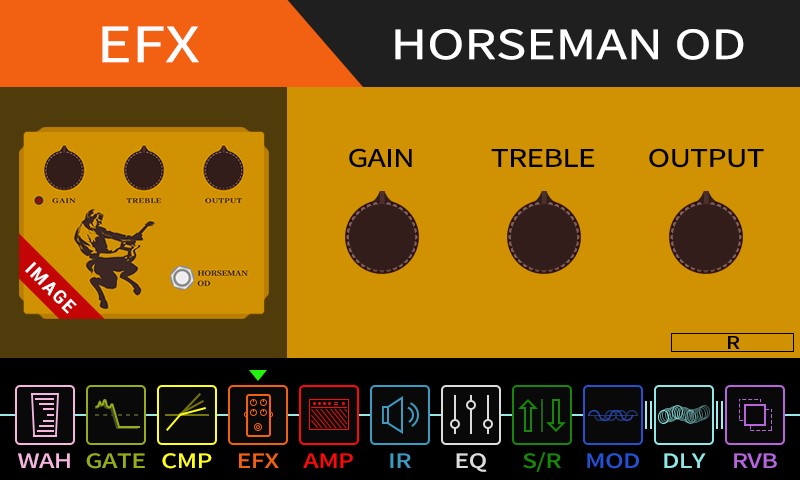
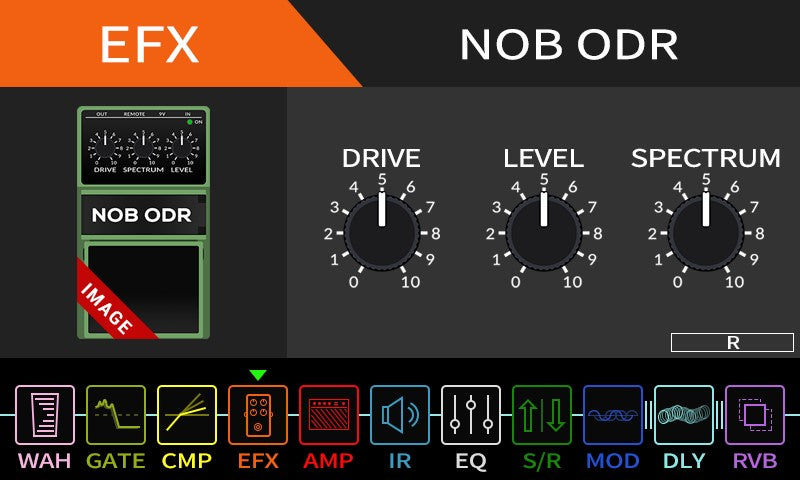
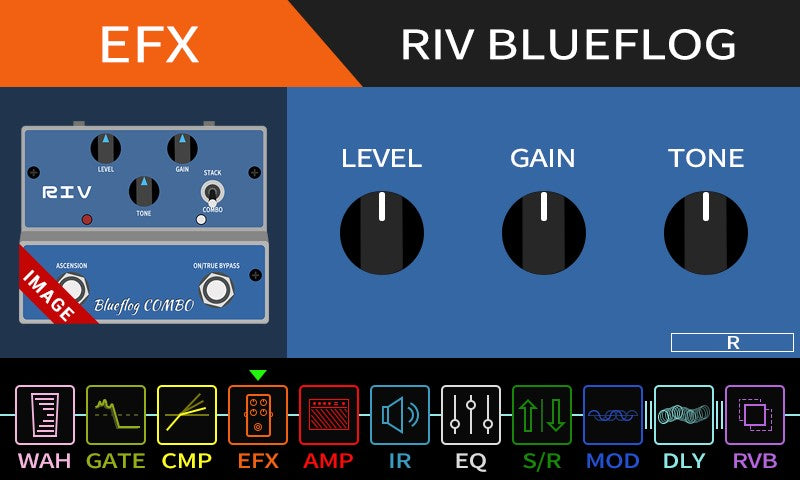
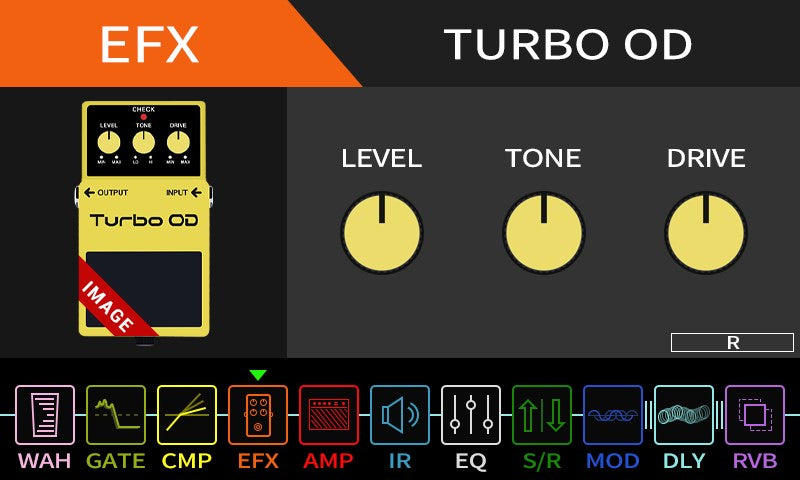
MG-30 Gen2 Firmware Update
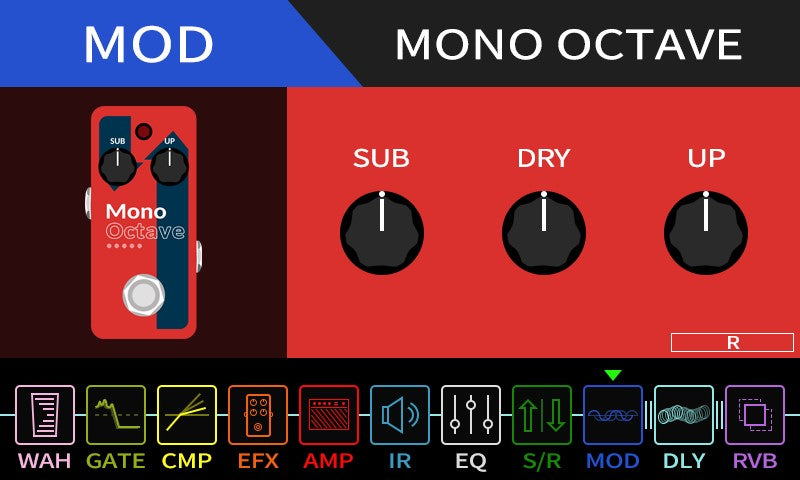
New MONO OCTAVE Mod Included
MG-30 Gen2 Firmware Update
New helpful Global Settings
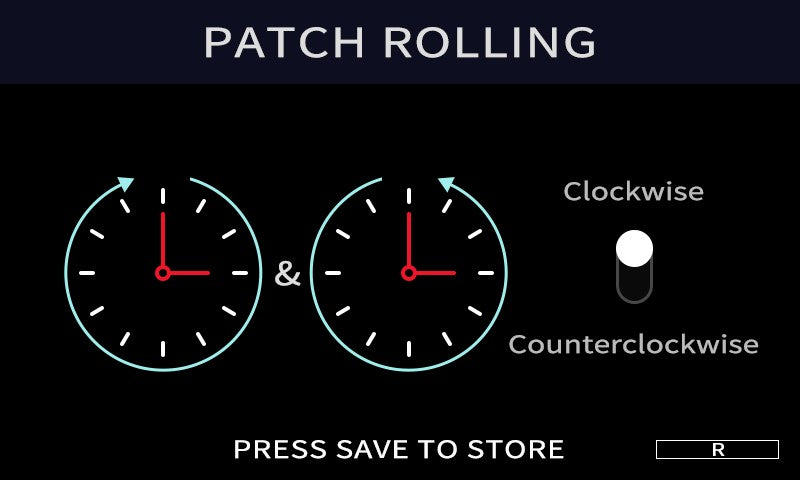
Patch Rolling
Clockwise / Counterclockwise, press CTL to Quit.
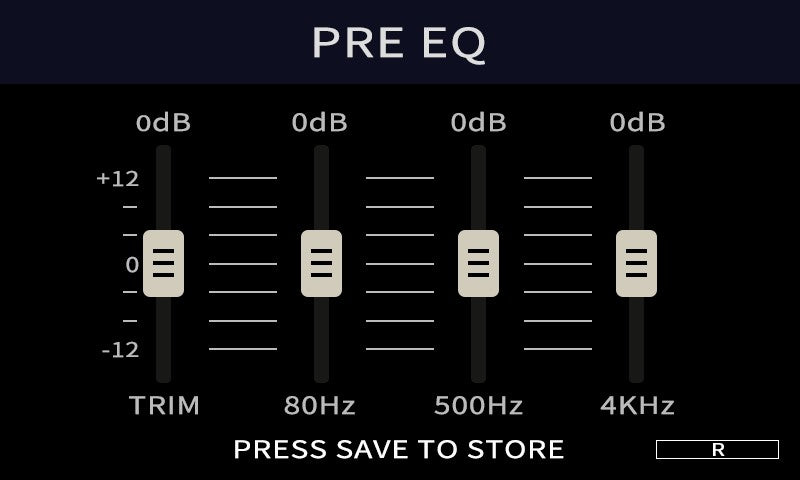
PRE EQ
with dB display
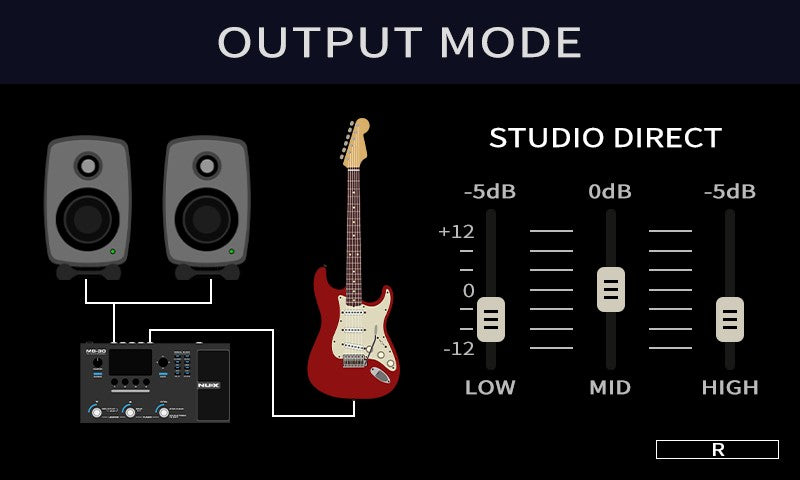
Output Mode
with dB display
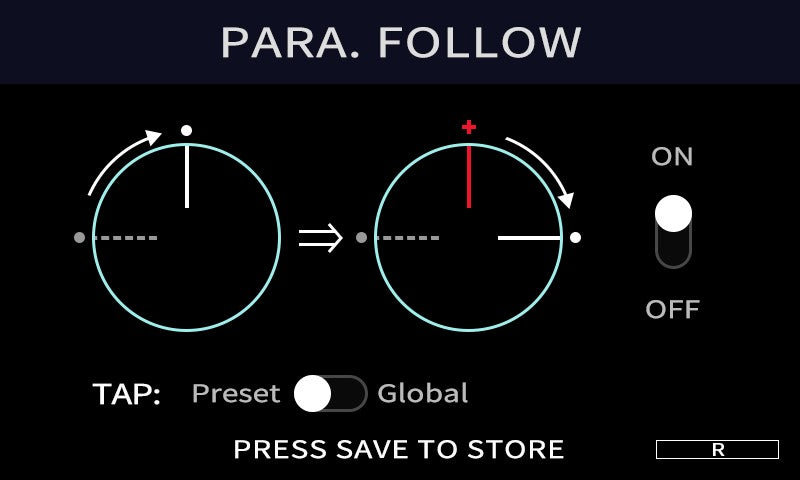
Para Follow
FOLLOW adds TAP: Preset/ Global
MG-30 Gen2 Firmware Update
New Scene Management Settings
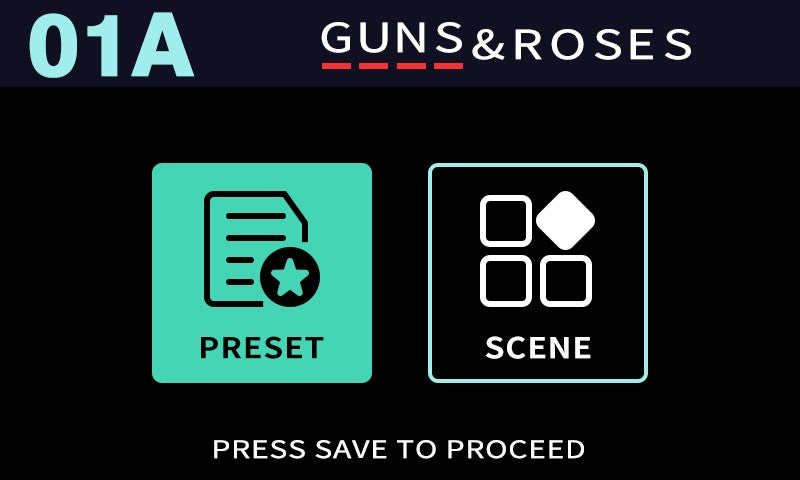
Preset / Scene Function
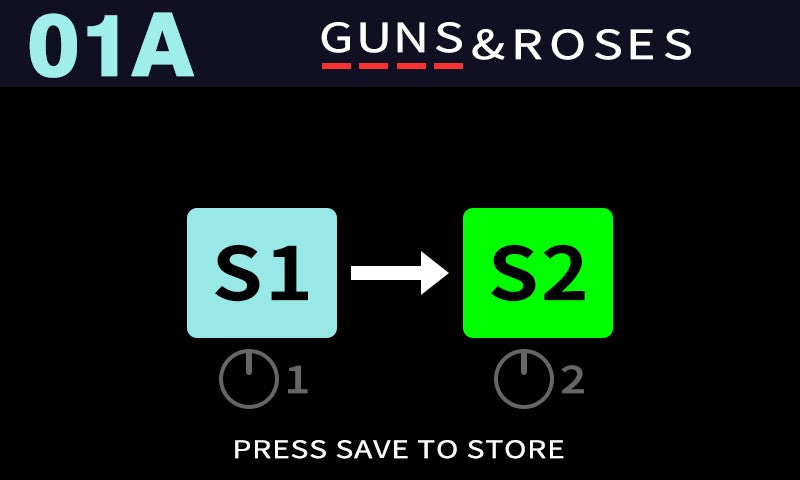
Copy Scene Function
How to install the GEN2 Update on your MG-30
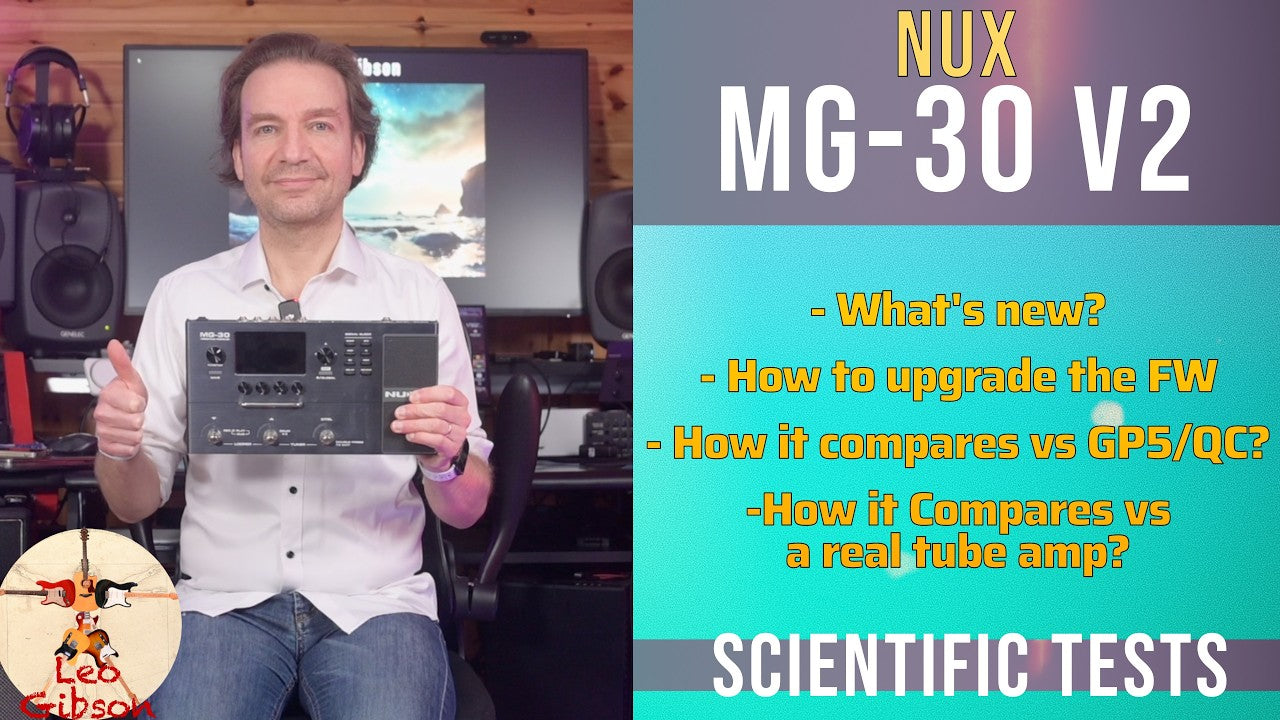
Helpful guide from Leo Gibson
Watch on YouTubeBefore your start
Notice & Warnings
Backup your presets
Upgrading the firmware will reset all user settings. Therefore, we recommend backing up your user presets before proceeding with the firmware upgrade.
If you do not want to keep your presets, you may skip this step.
Keep in mind
The (GEN2) firmware version is ONLY compatible with (GEN2) QuickTone™ Editor Software.
The firmware below is ONLY for the ENGLISH VERSION MG-30. If you are using the MANDARIN VERSION MG-30, updating this may cause malfunction or damage the machine.
Step 1
Download the files
Download your firmware based on your operating system:
Download the Quick Tone software based on your operating system:
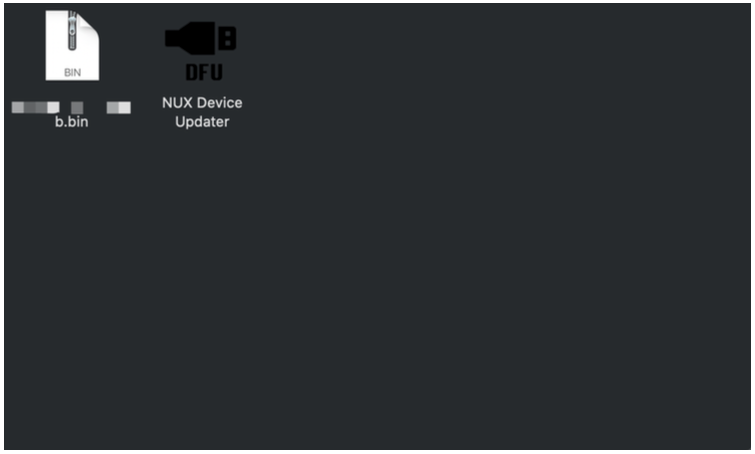
Unzip both files.
The Gen2 Firmware zip file should give you a folder that contains one "NUX Device Updater" and a .bin file (the actual binary firmware file).
Step 2
Connect your MG-30
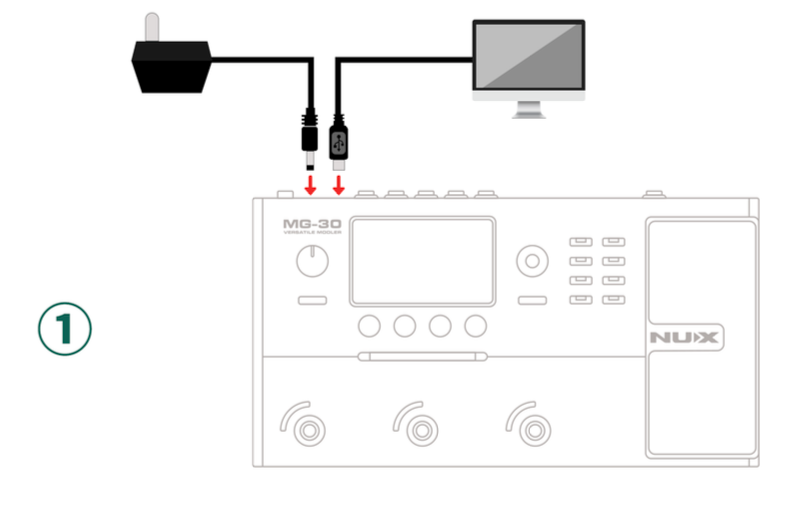
Connect MG-30 to your computer using the included USB-C cable, and plug in the power adapter.
Step 3
Placing MG-30 in update mode
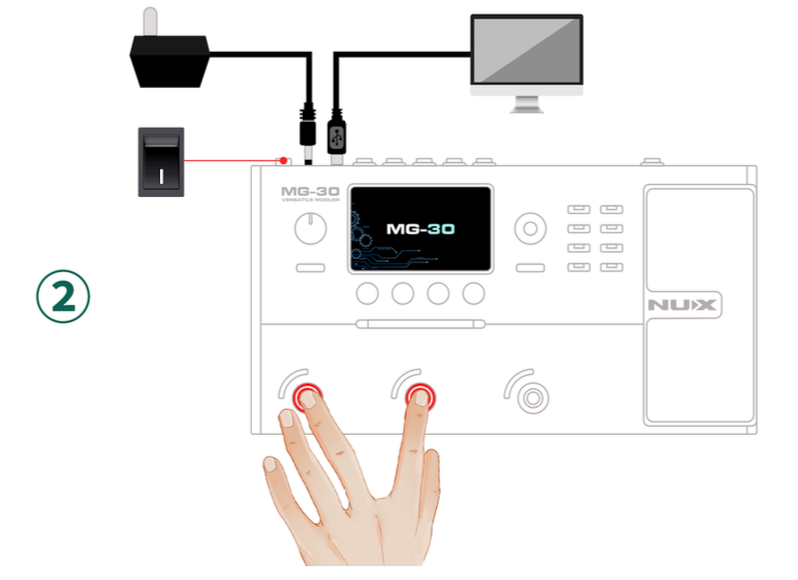
Activating the 'Device Firmware Update' (DFU) Mode
Press and hold down both the 'Down' and 'Up' footswitches while turning on the power switch. Release the footswitches until you see "Device Firmware Update" on the MG-30's display.
The "NUX DFU Updater" should now indicate that the device is connected.
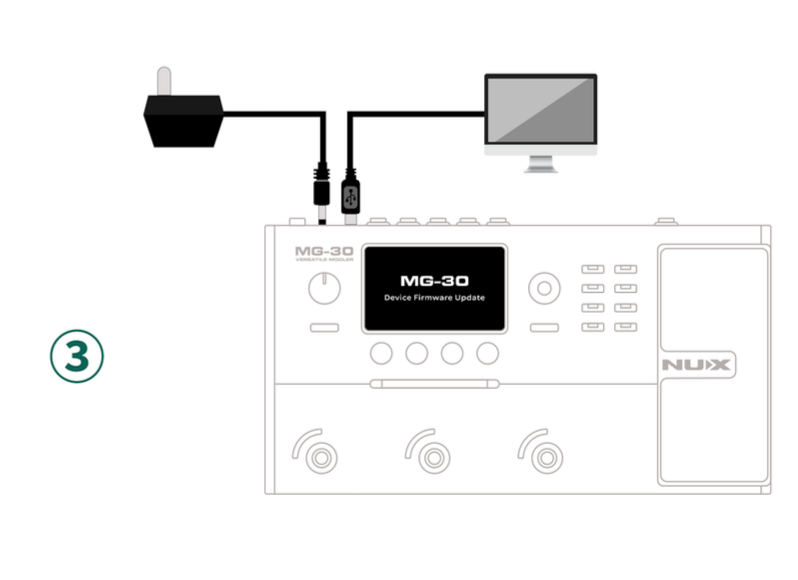
Step 4
Updating the firmware
On your QuickTone app, select the .bin firmware file and click "Start Update".
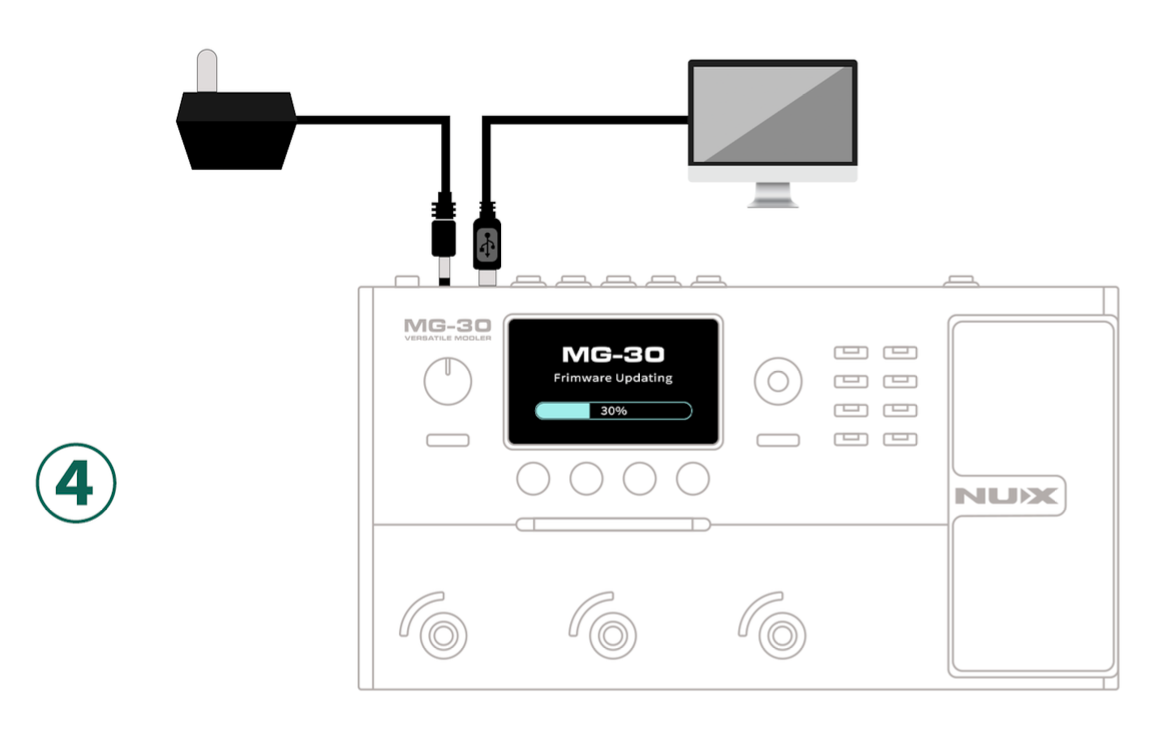
Wait until the progress to finish, it takes roughly 20 to 25 minutes.
WARNING: DO NOT Unplug the USB-C Cable or the Power Supply during the update.
When the firmware update process is completed:
- Close "NUX DFU Updater",
- Turn off the power switch, and then
- Disconnect the USB-C cable.
Final Checks
- After the firmware update, the MG-30 may take longer to boot up for the first time, which is normal. Please do not turn off the MG-30 or unplug the power supply during this time.
- Once the MG-30 is turned on, we strongly recommend performing a factory reset and recalibrating the expression pedal.
- If you have set a custom boot-up image, you may notice a temporary screen glitch. This is normal, as the image file was erased during the firmware update process. You can re-upload the custom boot-up image later.
- At this point, please download the latest version of the QuickTone Editor to reload your custom presets back to the MG-30. Remember, SOME presets may not be compatible with the new firmware. We also recommend deleting or archiving the previous version of the QuickTone Editor software to avoid any issues.
Need more help?
Feel free to reach out to us through the form before and we'll get back to you ASAP.
Latest Stories
Esta secção não inclui de momento qualquer conteúdo. Adicione conteúdo a esta secção através da barra lateral.
Share: